Holders of a central FIM ID can use a FIM mail account linked to it. The central FIM mail services are primarily used for FIM-internal communication, but can also be used as full-fledged mail services. For example, you can also use the SMTP service to send mail from outside of the university network to your FIM mail address if you set the appropriate configuration settings (see below).
Your e-mail address at the FIM is: fimkennung@fim.uni-passau.de
fimkennung corresponds to the name of your FIM account. The password for access to the mail server is the same as the login password for the LINUX login.
You can send and receive e-mail with a variety of programs. We recommend the program "Thunderbird" in the FIM student computer pools to use the FIM mail services.
Please use alternatively the IMAP access to the FIM mail server or our webmail interface (see below).
Alternatively, you can also use our IMAP service, which, unlike POP3, lets your mails stay on your FIM mail account:
Settings
Server name "imap.fim.uni-passau.de".
Username: Your FIM username
port 993
Connection security: "SSL/TLS " (Thunderbird mail client) or "Use SSL" (Apple Mail)
Authentication method: "Password, normal" (Thunderbird mail client) or "Password" (Apple Mail)
You can use the SMTP server mail.fim.uni-passau.de to send e-mails.
Settings
server name: "mail.fim.uni-passau.de".
Port: 587
Connection security: "STARTTLS" (for mail client Thunderbird) or "Use SSL" (Apple Mail)
Authentication method: "Password, normal" (for Thunderbird) or "Password" (Apple Mail)
Username: Your FIM username
The FIM uses the Expurgate service from provider Eleven to filter out spam mails. Mails that contain viruses are removed from circulation via appropriate virus software and are not delivered.
Important: Never reply back to the sender of an advertising mail/spam mail! This will only make your e-mail address even more valuable, because the sender will then notice that you do not simply delete advertising mail.
The FIM mail server offers the possibility to forward incoming mail to other mail identifiers and to filter it. We recommend that you set up mail forwarding in such a way that incoming mail on your FIM account is forwarded to a mail account that you use regularly by default. At the same time, a copy of each incoming mail should remain on the FIM mail server for control purposes.
You have the option of forwarding emails that arrive for you on your central FIM mail account to other mail addresses. To do this, log in with your FIM ID on a computer in the FIM student computer pool and execute the command "fim-mail-forward" in the shell. This will create / edit an entry in our central user database, which will take care of the forwarding(s). Be sure to check immediately whether your forwarding works as desired.
Please note: The previous method of managing mail forwards via a .forward file in your home directory is no longer supported since May 2024. However, forwards that existed at that time were automatically transferred to the central user database during the changeover, so that all forwards set up until then will continue to exist. During the migration, existing .forward files were renamed to ".forward.migrated", so that it becomes clear that they no longer have a function.
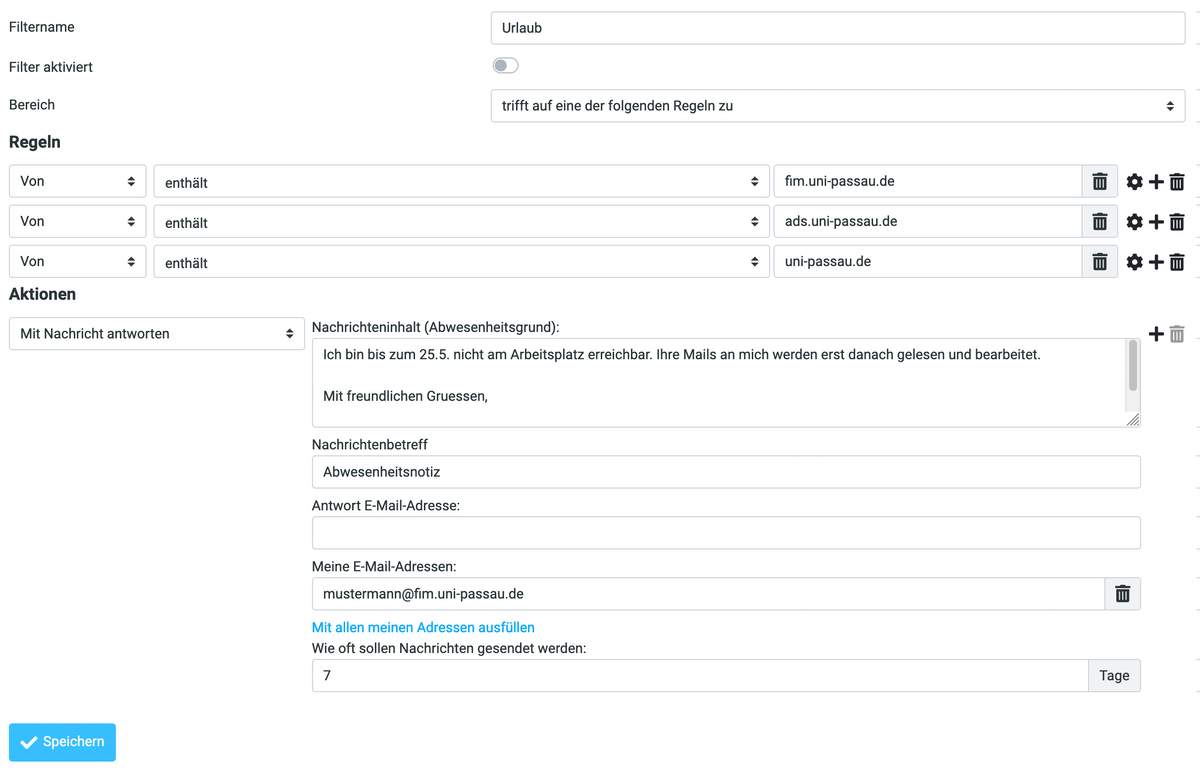
You can use mail filters to automatically sort incoming emails into predefined mailboxes according to certain criteria (e.g. sender, etc.). You can also program automatic processes, such as sending an out-of-office message if you are not available.
Important change in the management of mail filters from July 2024:
In the background, the FIM mail server uses a tool called "sieve" to allow you to use filters. Previously, the corresponding filter settings were stored in your home directory in directories and files such as sieve or .dovecot.sieve. From 1.7.24, these settings are stored directly in the file system of the mail server. Your existing mail filters are automatically migrated to the new structure. The filter settings in your home directory will lose their function and will therefore be given the suffix ".obsolete" during the migration.
From this point onwards please use the option to manage your filters via the GUI of the FIM webmail server.
On the FIM mail server, you can create filter rules via the webmail frontend webmail.fim.uni-passau.de to forward mails, set up an autoresponder during your vacation or generally pre-sort incoming mails into prepared mailboxes.